Setting Up Zoom Desktop for High Quality Audio: Step-by-Step Guide
In this guide, we will walk you through the audio setting for Zoom Desktop for Window and Zoom Desktop for Mac.
Nov 20, 2024●
Note! You must be using either the Mac or PC versions of the Zoom Workplace App (formally known as Zoom Desktop) to apply these settings. You can download the latest versions here: Zoom for Mac | Zoom for PC
1
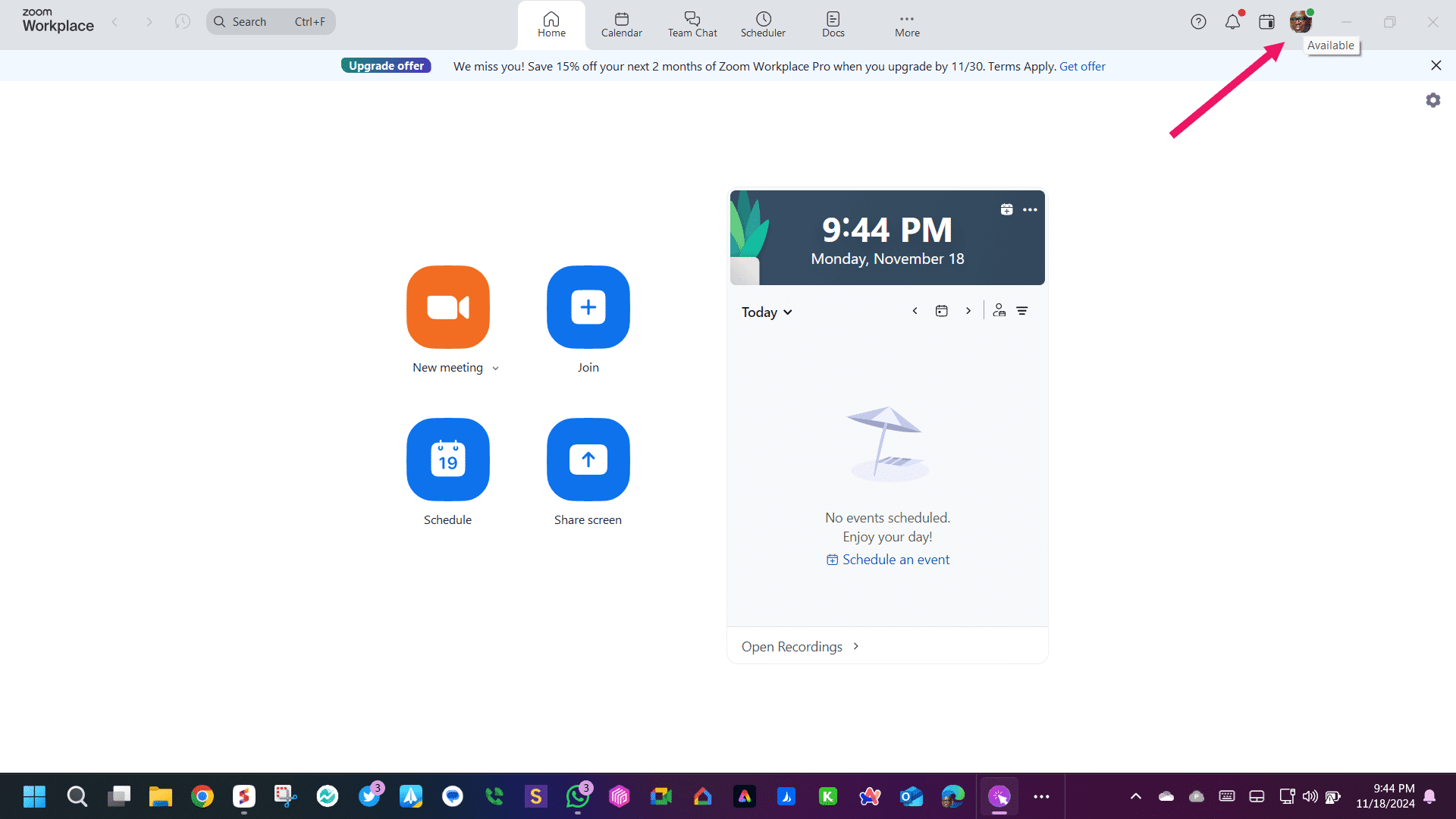
To Get Started, open the Zoom Workplace Desktop App and click the profile picture icon. This should be located in the the upper right hand corner.
2
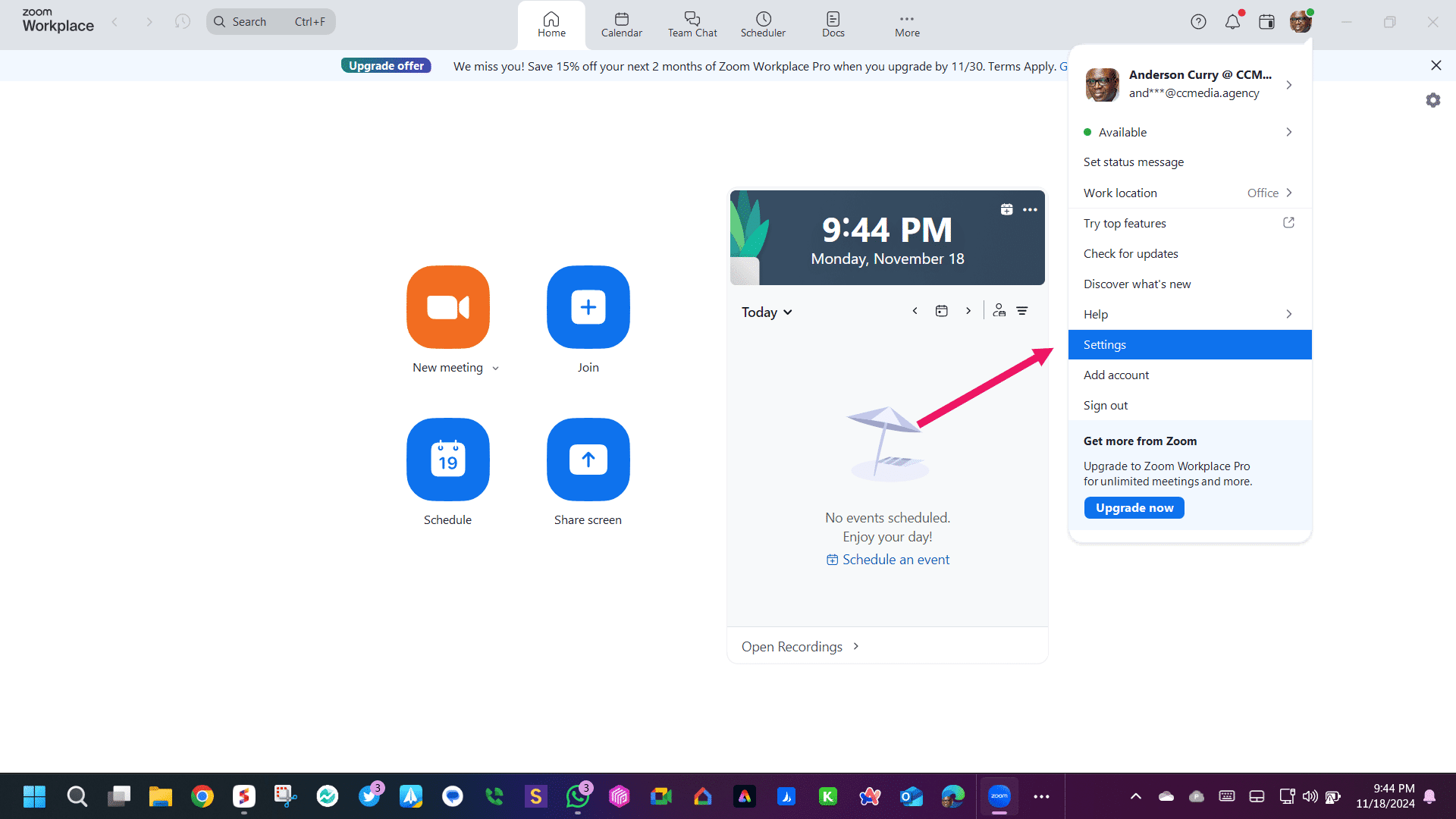
Scroll Down and Click Settings
3
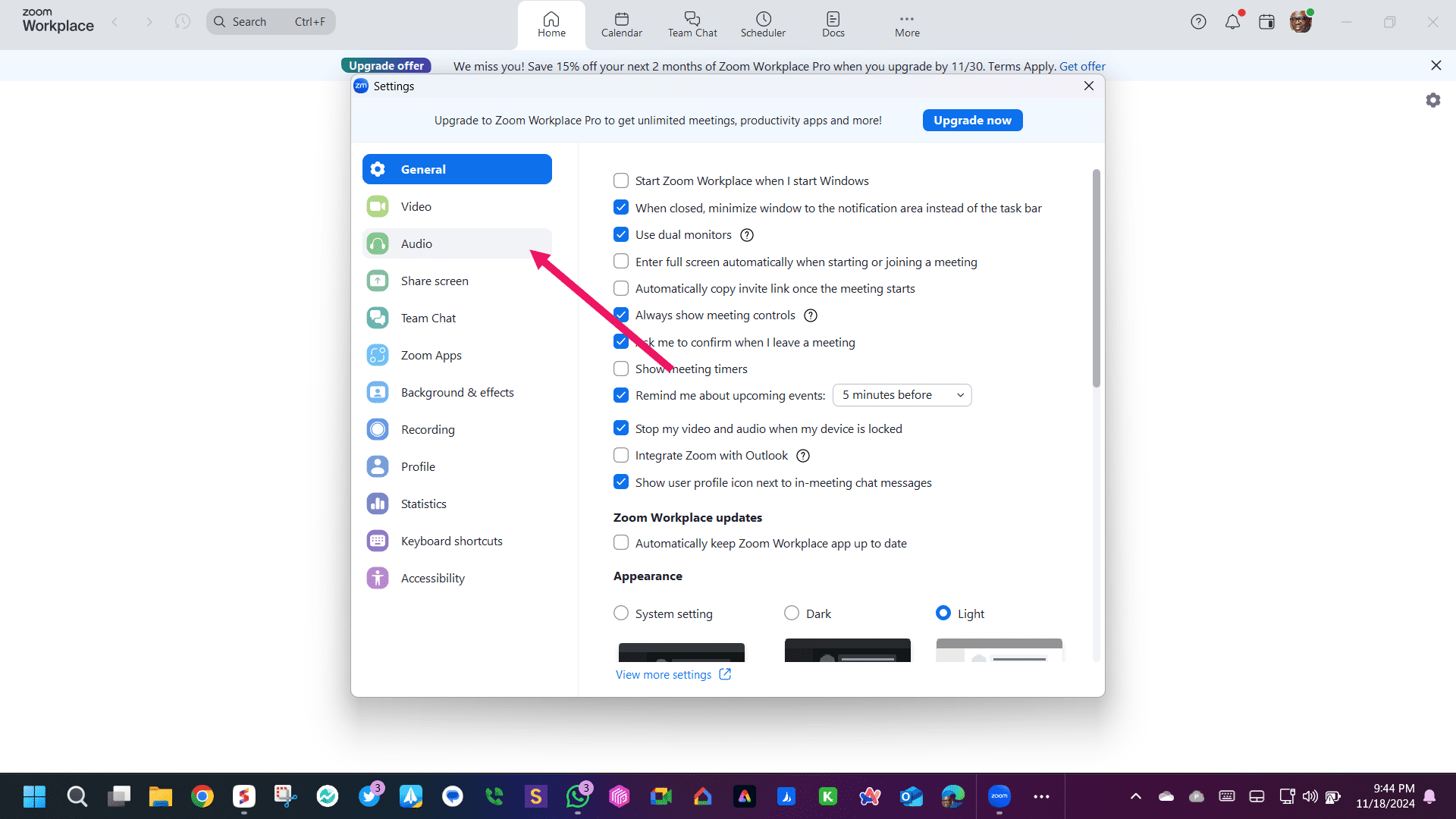
Next, Click Audio
4
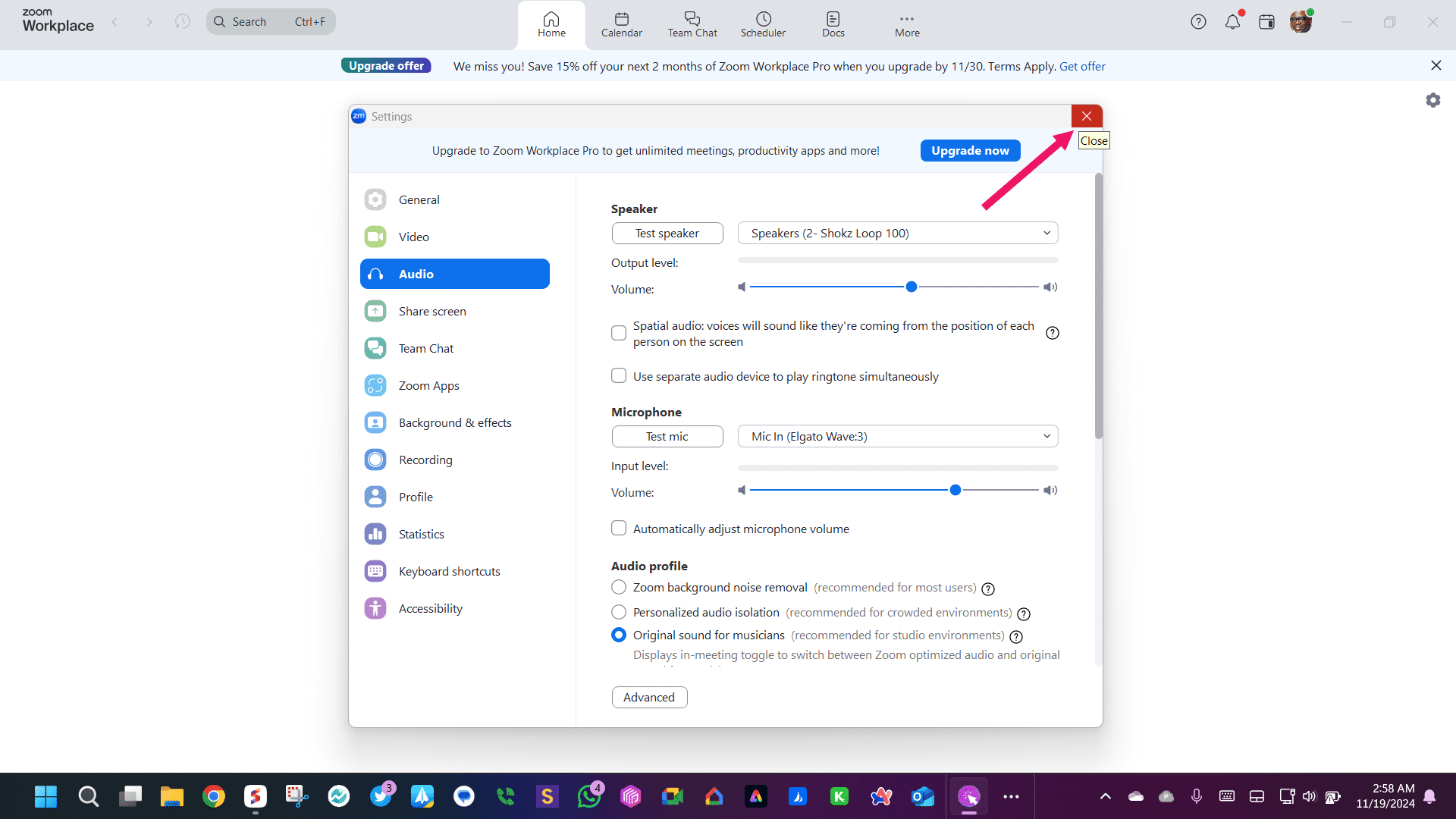
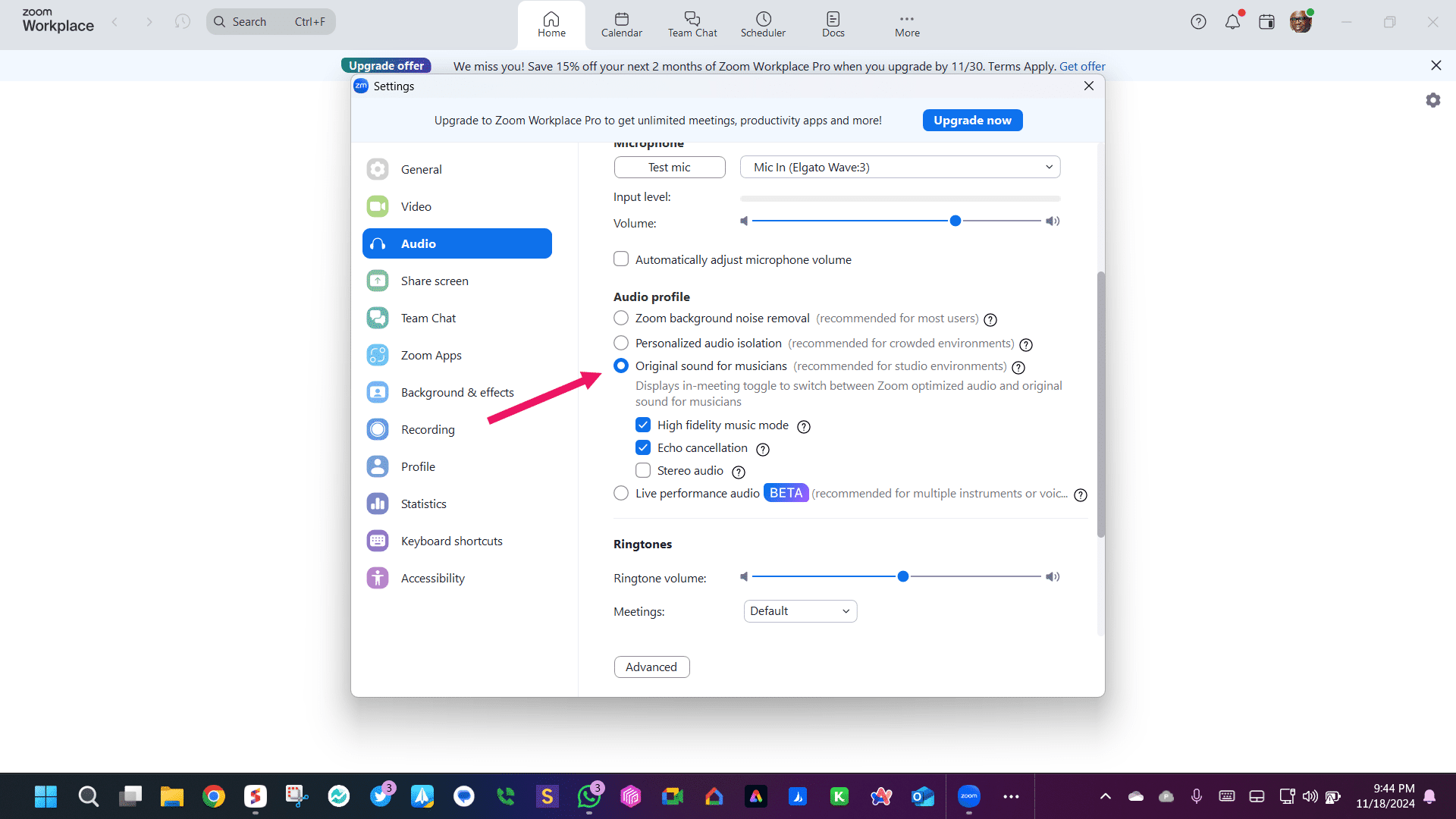
Select Orginal Sound
5
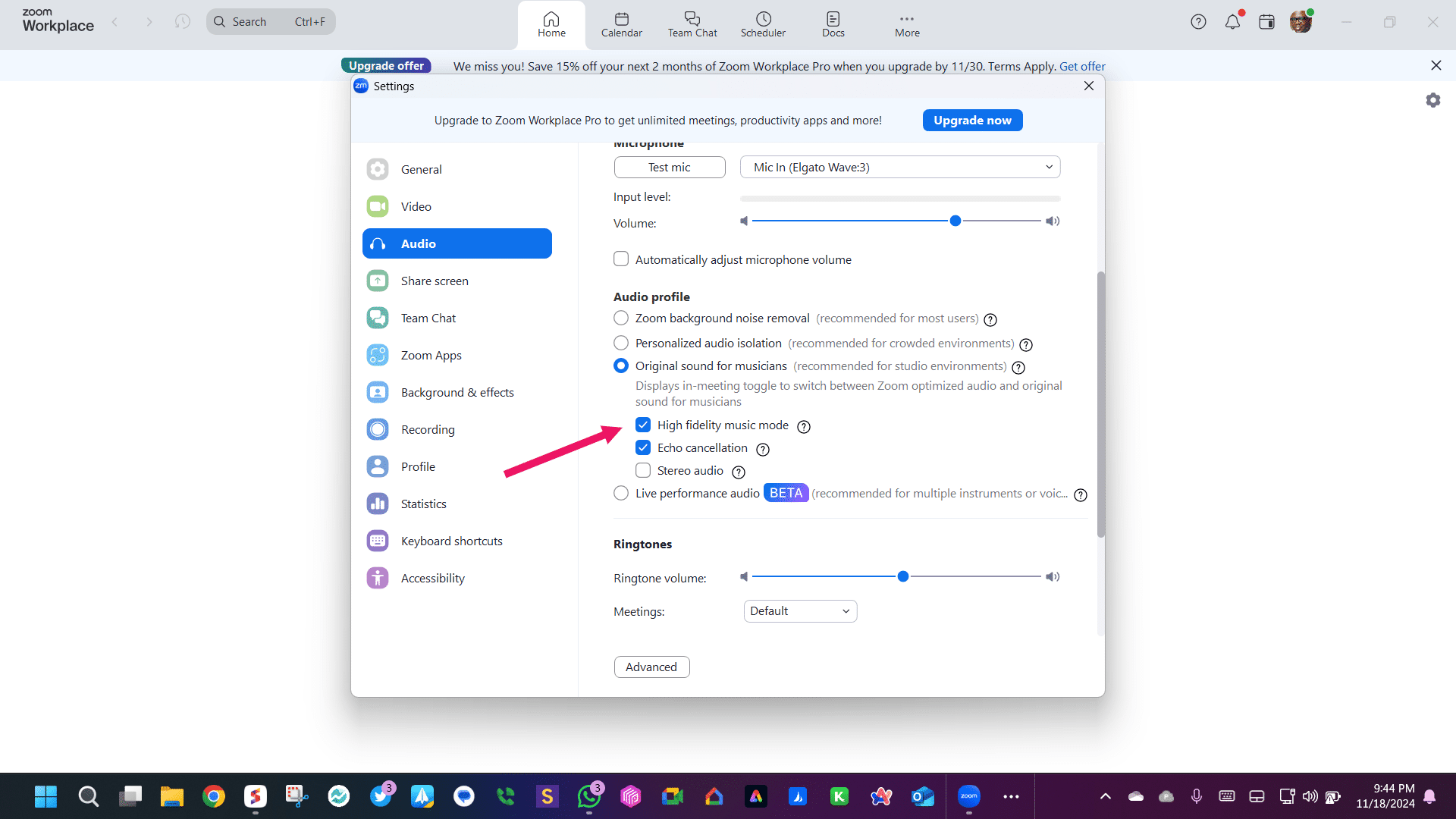
Enable High Fidelity Sound
6
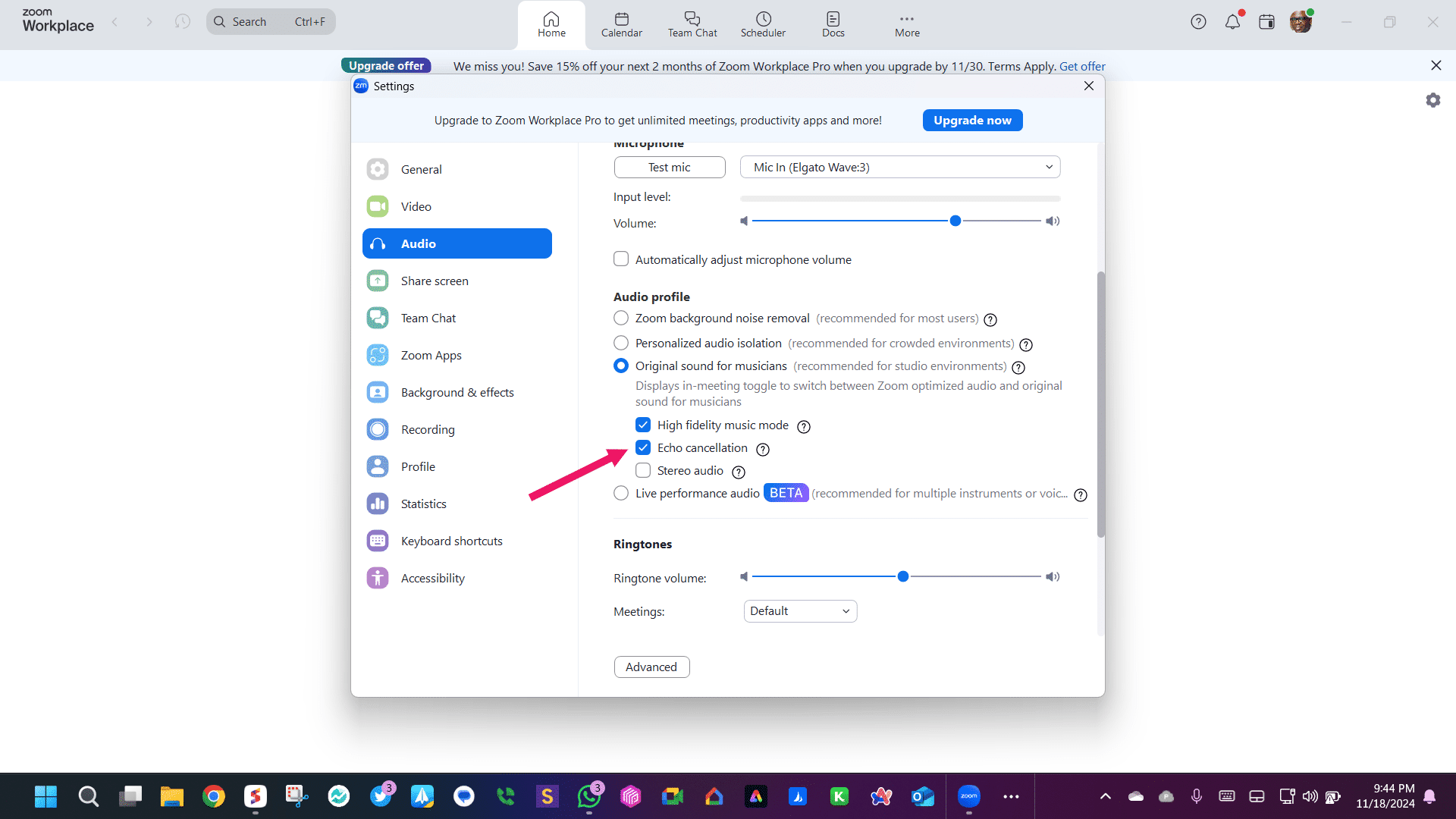
Enable Echo Cancellation
7
Click the X in the upper right hand corner to close and save your settings. That's it, your done!